Creating a Shared Email Account: Types, Tips, and Tools





A shared email account is a single email address (like info@ or support@) that allows multiple people to send, receive, or manage email communications, whether through a one-way distribution list, a basic shared mailbox, or an advanced shared inbox platform.
In this post, we're going to take a look at all three options, explain which options are best for which types of use cases, provide pros and cons for each, and share some tools and instructions you can use to create the type of shared email account your team needs.
Isn't another option to just share the login to a single email account?
While you can technically collaborate with others by sharing the login credentials to a single email account, we strongly discourage you from using this option. Sharing login credentials creates security issues and prevents you from using multi-factor authentication. Additionally, it's impossible to determine who did what in the inbox when everyone uses the same login.
Option 1: Distribution list
A distribution list is a type of shared email account that lets you send an email to multiple people via a single email address. For example, you might have a distribution list with the email hr-team@company.com; when an email is sent to that address, it forwards the email to 10 different personal emails for the people on your HR team, such as sally@, ahmed@, and shiva@.
The most common use case for a distribution list is to send updates to a large group of people. For example, a company's leadership team can send a revenue update to all employees, an HOA can send a budget update to everyone who lives in the neighborhood, or a book club can let all members know which book to read for the next meeting.
Pros of distribution lists
Quickly send emails to multiple individuals without having to enter all email addresses separately and with no risk that you'll accidentally leave someone off of the list.
Easily manage the distribution list by adding or removing email addresses as needed from a central interface when the people who need to receive the emails change.
Create multiple distribution lists for different groups of individuals (sales-team@, marketing-team@, leadership-team@, etc.).
Cons of distribution lists
Email can only be sent to a distribution list. There is no way to respond from a distribution list; instead, replies will come from each member's personal email. This makes distribution lists a poor option if you want emails to show up as sent from the central email address.
If someone replies to an email sent to a distribution list, it will only go to the entire group if they use reply-all. If they just use reply, the response will only go to the original sender. This can make it easy for people to miss replies that contain important information.
Tools for creating a distribution list
The simplest way to create a distribution list is to use your existing email client. Here are instructions on how to do it with the most popular email providers:
Conversely, you can use a dedicated distribution list tool that's not tied to a specific email provider. For that, we recommend Gaggle Mail.
Gaggle Mail works like a distribution list but also gives new members searchable access to the entire archive of messages sent to the group. Additionally, if members don't want to get an email for every message sent to the group, they can opt to get a daily digest instead. Messages to the group can also be moderated, and members can mute messages they're not interested in.
Option 2: Shared mailbox
A shared mailbox is the email client's solution to the security problem of users sharing a login to a single email account. It lets you create a separate email address that your team will share and then add users to that account so they can manage it using their own credentials.
Unlike a distribution list, all emails sent from your team's shared mailbox are sent from your shared email address (e.g., support@) rather than the individual's personal email address.
In addition to letting all users view and reply to all emails sent to the shared email address, shared mailboxes also come with additional features that help teams collaborate. In Google Collaborative Inbox, for example, you can assign emails to different members of the team or set statuses on emails to let other team members know what's happening with specific requests.
Shared mailboxes are most commonly used by small companies that only need to have a couple of people managing the mailbox. When the volume of incoming emails is low or you have people managing it at different times of the day, it works well, and the fact that it's a free option available through an existing email client makes it appealing to businesses with smaller budgets.
Pros of shared mailboxes
You can create a shared mailbox in Outlook or Gmail for free.
Users can access the mailbox using their own unique Outlook or Gmail logins, preventing the security issues that arise from sharing login credentials.
You'll be able to see what actions individuals users took in the inbox.
Replies from the mailbox will come from the shared email address rather than from users' individual email addresses.
You'll get access to a few basic collaboration features you won't find in personal email accounts.
Cons of shared mailboxes
Shared mailboxes are typically only effective when teams are small and email volume is low. As your team and email volume grow, you'll start tripping over each other because of the lack of advanced collaboration features.
Shared mailboxes do not have any reporting mechanisms, so if you need data for reporting to leadership or making the case for growing your team, you'll have to collect all of it manually.
It's not always easy to identify who's replied to what or who is currently writing a reply, which can lead to duplicate work and email recipients getting multiple (sometimes conflicting) responses.
Tools for creating a shared mailbox
Both Outlook and Gmail have built-in options for using their systems to create a shared mailbox. Here are instructions from Microsoft for creating a shared mailbox in Outlook, or, if you're a Google user, you can use our guide to creating a Collaborative Inbox in Gmail.
Option 3: Shared inbox
A shared inbox is a dedicated email management tool that's specifically designed for team collaboration. Shared inboxes allow members to view reports, adjust permissions and account settings, see data about their customers, add private notes, and prevent duplicate replies. Plus, most come with automation features that help your team work more efficiently.
Shared inboxes are most commonly used by support teams handling emails from either internal (coworkers) or external (customers) parties. However, they can be used by any type of team that collaborates to answer received emails, such as HR teams answering questions about benefits, higher education departments answering parent and student questions, etc.
Unique shared inbox features
Some of the features you'll find in shared inbox software that you won't get from a distribution list or shared mailbox include:
Collision detection: Notify users when someone else is currently working on or has already sent a reply to an email in order to prevent duplicate work and responses.
Saved replies: Build a library of answers to frequently asked questions that can be inserted into replies in just a couple of clicks.
Teams: Create groups of users (e.g., support, billing, and sales) that you can assign requests to and pull reports for separately.
Notes: Add private notes to emails that only your team can see, and tag coworkers in the note to give them a heads-up or let them know you need their help replying.
Access permissions: Control visibility and access to specific mailboxes and platform features at the individual, team, or company level.
Tags: Add labels to specific conversations for reporting, organization, or automation.
Views: Group emails into specific lists based on criteria like status, assignments, or priority to better organize your inbox and clarify assignments or priorities.
Routing: Automatically assign incoming emails to different individuals/teams equally or based on factors like capacity and skillsets.
Customer profiles: See important details about requesters in a sidebar, such as their full name, email address, company, and previous support interactions.
Workflows: Create rules that trigger specific actions either manually or automatically. For example, assign an email to a specific team when a certain tag is added to it, or automatically assign all emails with "billing" in the subject line to the finance team.
AI copilots: Use AI to write draft email replies to customer requests, summarize long conversation threads, translate replies into different languages, or clean up what you wrote yourself (check your spelling and grammar or make your email longer or shorter).
Reporting: Analyze data to understand how your team is performing, how satisfied your customers are with the help they're receiving, which are your busiest times of day and days of the week, how long it takes your team to reply to requests, and much more.
Additionally, many shared inbox tools also come with other features that help you either reduce your support volume or provide support on other mediums, such as a knowledge base builder, a live chat widget, and an AI chatbot that answers customers' questions automatically.
Pros of shared inboxes
Shared inboxes offer dozens of features to help teams collaborate more effectively, work more efficiently, and understand performance in detail.
All of the additional features make it easy for your team to deliver better, faster, and more personalized support.
Cons of shared inboxes
While many shared inbox tools offer free plans, those plans tend to be fairly limited in terms of the number of users you can add and the specific features you get access to. For all but small teams, you'll likely have to subscribe to a paid plan to get the most out of the tool.
Tools for creating a shared inbox
While we have another entire article reviewing some of the best shared inbox software, our favorites include:
Help Scout: Help Scout is an easy to use and affordable platform that can be used for email management only or as a complete customer support platform. It comes with all of the shared inbox features listed above, is simple to set up and intuitive to learn, and it even offers a pretty generous free plan that small businesses can use indefinitely.


Gmelius: Gmelius is interesting in that it transforms your existing Gmail mailbox into a robust shared inbox. You still work within the familiar Gmail interface but get access to additional features like reports, automation, collision detection, internal notes, and even integrations with tools like Slack, Salesforce, and Nicereply.
Emailgistics: Emailgistics is an extension available for Outlook that adds additional features — like routing, reports, notes, assignments, saved replies, SLAs, and conversation histories — to your existing Outlook shared mailbox.
How to choose the right shared email account for your needs
If you're still wondering which of the following options for creating a shared email account is right for your needs, here's a quick guide for which use cases are best for which options.
Use a distribution list if you only need to send one-way announcements and broadcasts (e.g., team, company, club, or organization updates) and don't need to be able to reply to emails using your shared email address.
Use a shared mailbox if you are a very small team (two to three people) with low email volume, need to reply from a central address (e.g., support@ or info@), and you don't need the features of a more robust shared inbox tool.
Use a shared inbox tool if you are a growing team, email volume is high, you are struggling to figure out who is doing what, and you need collaboration, reporting, or efficiency tools (like saved replies and automation).
Here are additional things to consider when looking into a new tool:
How easy is it to use? Is there a learning curve?
How many people will be using the tool?
What features are must-haves? Which ones are nice-to-haves?
What is your budget?
Once you know your requirements, you’ll be ready to start your search!
7 best practices for managing a shared email account
A shared email account is a tool, and, like any tool, it needs to be implemented and used correctly to deliver the best results. Once you're finished choosing the type of shared email account that's right for your team, follow these best practices to get the most out of it.
1. Assign responsibilities to your team

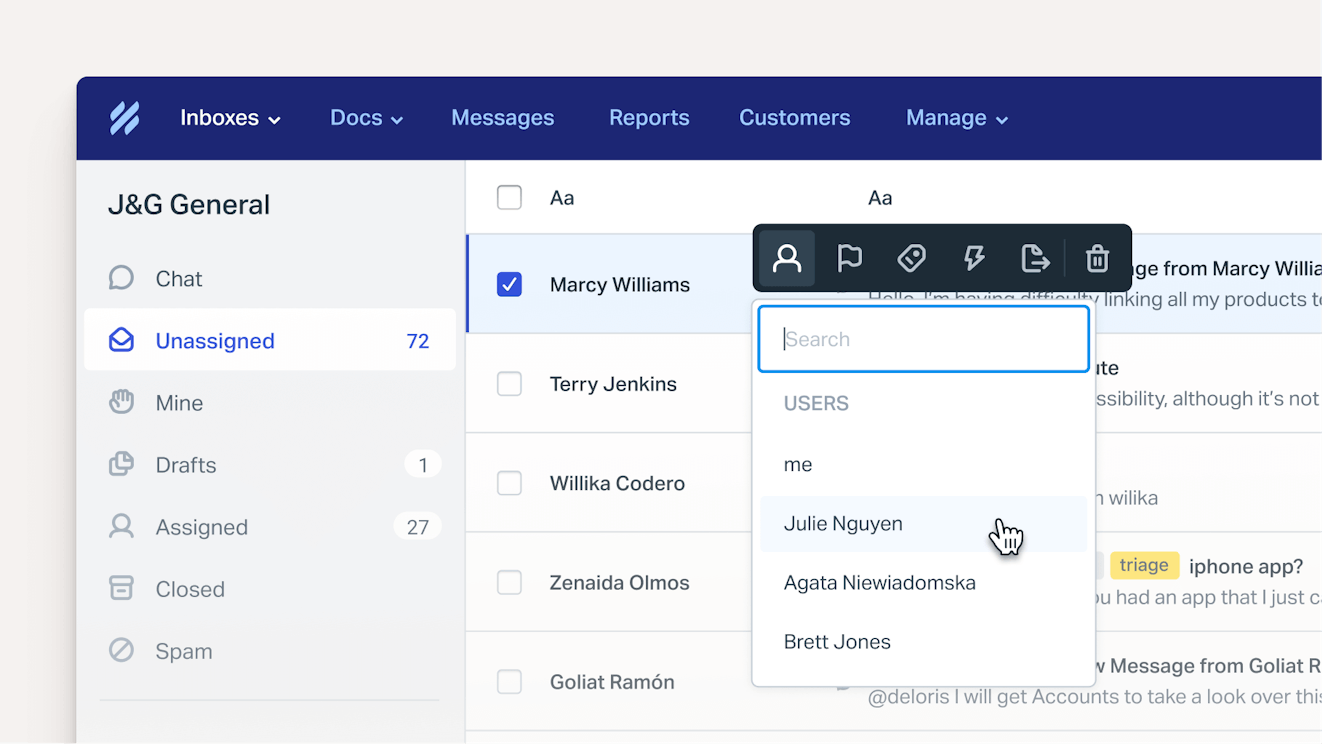
Make it easy for everyone to know who is taking care of what. Assigning responsibilities is a more efficient way to operate than having every user jump on the first unassigned issue they see at the top of the mailbox.
Put processes in place that make ownership clear and allow your team members to play to their strengths:
Route specific requests to relevant departments, such as billing requests to the finance team and bugs to the development team.
Implement escalation management processes to escalate difficult issues to a team or individual with more specialized knowledge or a higher level of authority.
Assign tags to each email based on issue type or other keywords. Tags give you insight into what’s going on in your mailbox and make it easier to organize conversations and see who should handle which issues.
For example, a small marketing agency can use tag-based assignments to route design feedback to their creative team and client questions to the appropriate account manager. That allows them to reduce their response times since emails immediately reach the right person.
Recommended Reading


2. Automate repetitive tasks


While managing email can be time consuming, there are ways to reduce your team’s manual work. Any shared inbox worth its salt offers automations to eliminate much of the busywork. You can automate any task that is simple and repetitive, such as:
Sending automatic replies to acknowledge a customer’s email.
Adding tags to conversations.
Closing conversations that are no longer active.
Simple workflows like these remove the need for someone to spend their time manually sorting, escalating, or managing conversations, which keeps your shared inbox more organized and enables faster responses for requesters.
For example, you might be running a business that sells home insurance. Your team could create a workflow that automatically notifies someone of any email containing the word “cancel” to ensure that customers who are unhappy with their policies are moved to the top of the queue or assigned to more tenured team members.
Recommended Reading

3. Improve the customer experience with self-service


Many people prefer to look for answers on their own, and they can become frustrated when a resolution to their issue isn’t easily found on your website. This is one of the reasons that self-service is a must for growing businesses. Shared inbox tools often come with knowledge base software that you can use to publish a help center.
Help centers are great places to provide answers to frequently asked questions, plus they offer the added bonus of lightening the load on your team. Write and publish an article once, and it may help hundreds of people find what they need, resulting in fewer emails to your team.
Help articles are also a great resource when responding to emails. For example, if someone wants to know how to download an invoice, you can send them the relevant article. Since there is usually a lot more room to be detailed in your help documentation — you can even add images and video — the resource can be a great companion to your response.
Recommended Reading

4. Use AI to assist your team

AI is like having your own personal assistant, which makes managing a growing number of emails easier to handle. Of course, AI isn’t a replacement for human agents, but you can combine the skills of your team with the capabilities of AI to lighten your team’s load and make time for more important tasks.
For instance:
Email summaries: AI can condense long email threads into a few short bullets, helping anyone reviewing a conversation get up to speed.
Writing assistance: Improve your responses by using AI to expand rough drafts, adjust your tone of voice, and even translate your responses into other languages.
Drafting help: You can automatically draft responses to customer emails using AI. Most AI features use content from previous conversations and your help center to inform the response, and most will let you review the draft before hitting send so you can ensure that it feels human and on-brand.
AI-enhanced shared mailboxes allow you to respond to emails at scale while maintaining a high standard of service. For instance, an ecommerce business can implement a combination of these AI features during their holiday rush, enabling their team to stay ahead of emerging issues and getting customers the help they need quickly.
Recommended Reading

5. Bring order to the chaos with custom views

With a huge amount of email coming in, the overall inbox can seem overwhelming. Custom views allow you to sort and make sense of your conversations so you can handle them more effectively.
You can use these filtered views to sort your emails using different conditions like product type, issue severity, assignee, or even time-based criteria like whether a customer has received a response within 24 hours or not.
Breaking down a huge list of emails into smaller, more manageable pieces can provide focus and transparency, ensure cases don’t get lost in the shuffle, and — if you choose to assign specific views to individuals or teams — can also create accountability.
6. Use data to tell a story and improve performance

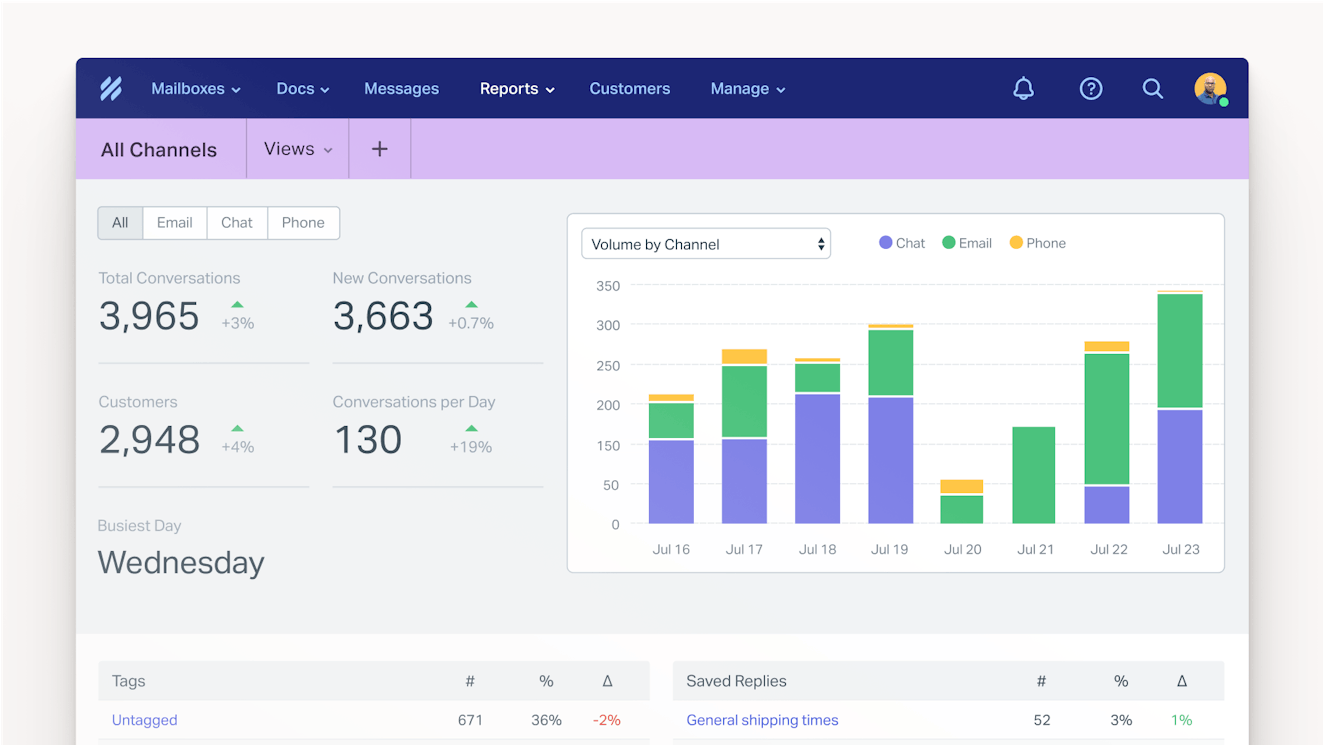
Teams that upgrade to a shared inbox often do so because they need insights into contact volume, prevalent issues, and team performance. Shared inboxes will typically include data on key metrics like first response time, time to resolution, and handle time.
Tracking these metrics enables you to understand things like when you’re busiest, when you’ll need to hire, and the types of experiences your team is providing. Reporting can also reveal things like product issues, customer concerns and sentiment, and ways you can improve.
Recommended Reading

7. Integrate other tools your team uses


Let’s think outside the shared inbox for a minute. Integrating your shared mailbox with other common tools you use saves your team time and creates a more seamless experience for your customers.
For instance, a customer might report a technical issue via email, and your support team may then need to create a Jira ticket for engineering to investigate the bug. Once the bug is fixed, engineering needs to let support know so they can follow up and share the good news.
This process is a snap when your tech stack is integrated. Your team can create the Jira ticket from within your shared mailbox and then all Jira updates will be reported right there within the conversation. On the flip side, all updates to the email thread are also reported in Jira, making it easier for your developers to investigate the case.
The importance of thoughtful shared email management
You can have the most friendly, prompt, and helpful team in the world, but making them use a tool that’s a poor fit will make it hard for them to do their jobs. Finding the right tool for your use case and putting these best practices in place can help you create experiences that leave the people who interact with your team happy and engaged every single time.
Jessica Greene
Jessica Greene is a Help Scout alum, where we make excellent customer service achievable for companies of all sizes. Connect with her on LinkedIn or through her website.
Catherine Heath
Catherine is a content writer and community builder for creative and ethical companies. She is often writing case studies, help documentation, and articles about customer support. Her writing has helped businesses to attract curious audiences and transform them into loyal advocates.