Help Scout's AI Features: Deliver Better Support, Faster


Most of our customers are businesses where support is a revenue driver, not a cost center. Delivering great support isn't a nice-to-have for these businesses; it's key to their growth. So every decision we've made related to adding AI to our platform has been focused on how it can be used to improve support — never how it can help "deflect tickets."
Our AI features let customers get answers instantly, free up support teams to focus on the types of requests that only humans can help with, and give you actionable data you can use to continually optimize your processes.
In this post, we're taking a detailed look at all of Help Scout's AI features, explaining what they are, how they work, and when to use them.
Recommended Reading
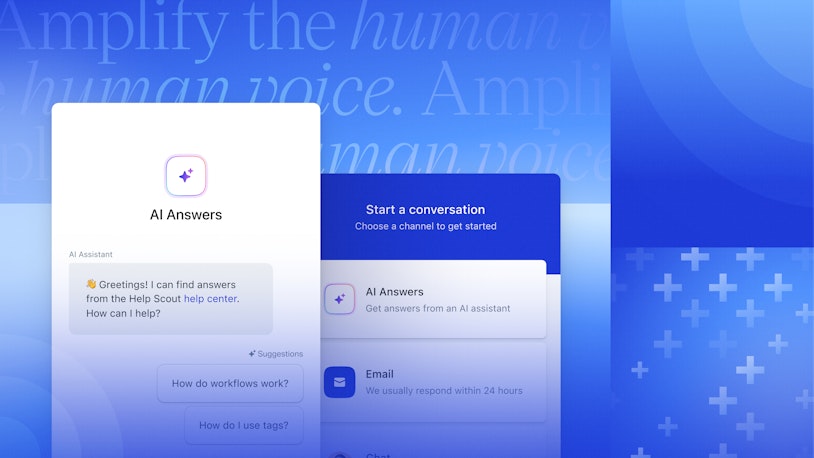
AI agents

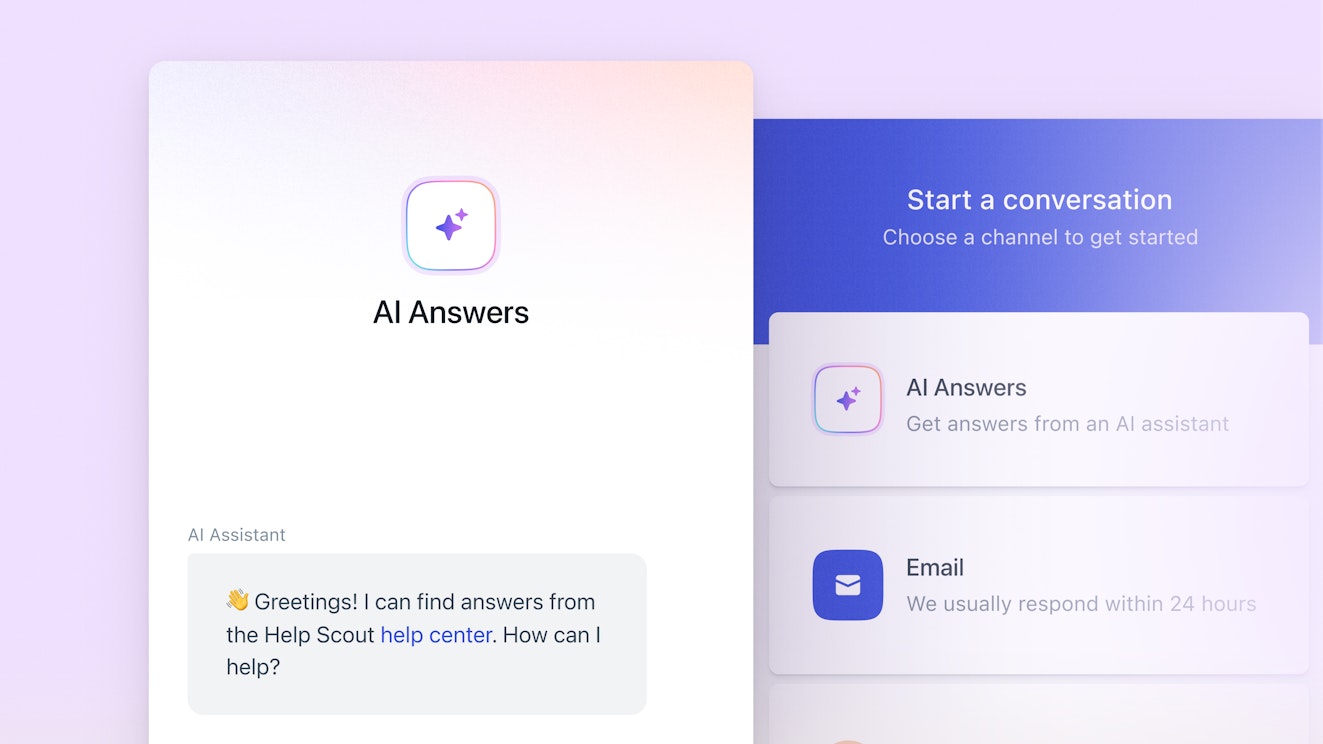
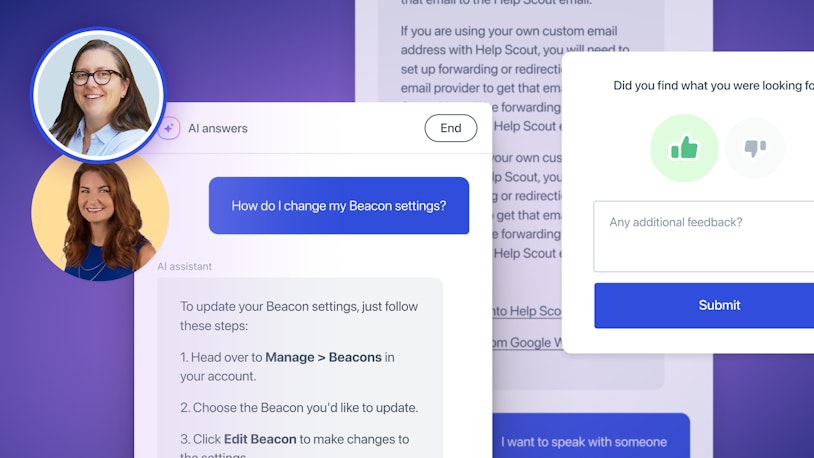
AI agents use content from your knowledge base articles and any publicly available website or documents you've added as sources to provide direct, conversational answers to customers' questions instantly.
This lets you provide 24/7 self-service support. Customers get the answers they need immediately without having to dig through your knowledge base or wait for a human to pick up the conversation, and your team gets to focus more of their time on complex requests where a human touch is essential.
If customers aren't satisfied with the answers they get from AI, sending the request to your support team is simple, and there are tons of features your team can use to improve the answers that AI agents provide.
Recommended Reading
Create different agents for different use cases
If you run multiple brands, have different products with unique documentation for each, or want your AI agent to use a different tone when replying to prospects than it does when replying to customers, you can create multiple agents. Every agent you create can be configured individually using the features below.
Customize how your agent responds


When setting up an agent, you can customize its tone of voice and writing style. Simply write instructions explaining anything you want the agent to keep in mind: what the agent's role is, who it's replying to, and what tone and style it should use when writing replies.
However, even without detailed instructions, your agent will likely sound like your team because it's trained on content your team created. Here's a video of an interview we did with a customer where he turned on AI agents with no additional tone and style configurations and was surprised at how much its responses sounded like his team:
In addition to dictating how your agents respond, you can also write a custom greeting message for it to use to initiate conversations, create a list of suggested questions that display in the chat window, tell it how to respond when the customer requests help from a human, and specify what text will appear when the agent transfers the conversation to live chat with a member of your support team.
Recommended Reading

Select your knowledge sources


Each agent can be configured to use specific sources in its training data: a knowledge base you've created in Help Scout, your website or a specific subdomain, and even documents, PDFs, and spreadsheets (as long as they're publicly accessible).
The answers it provides will only ever use the sources you provide — never content from the general web.
Provide additional information and context

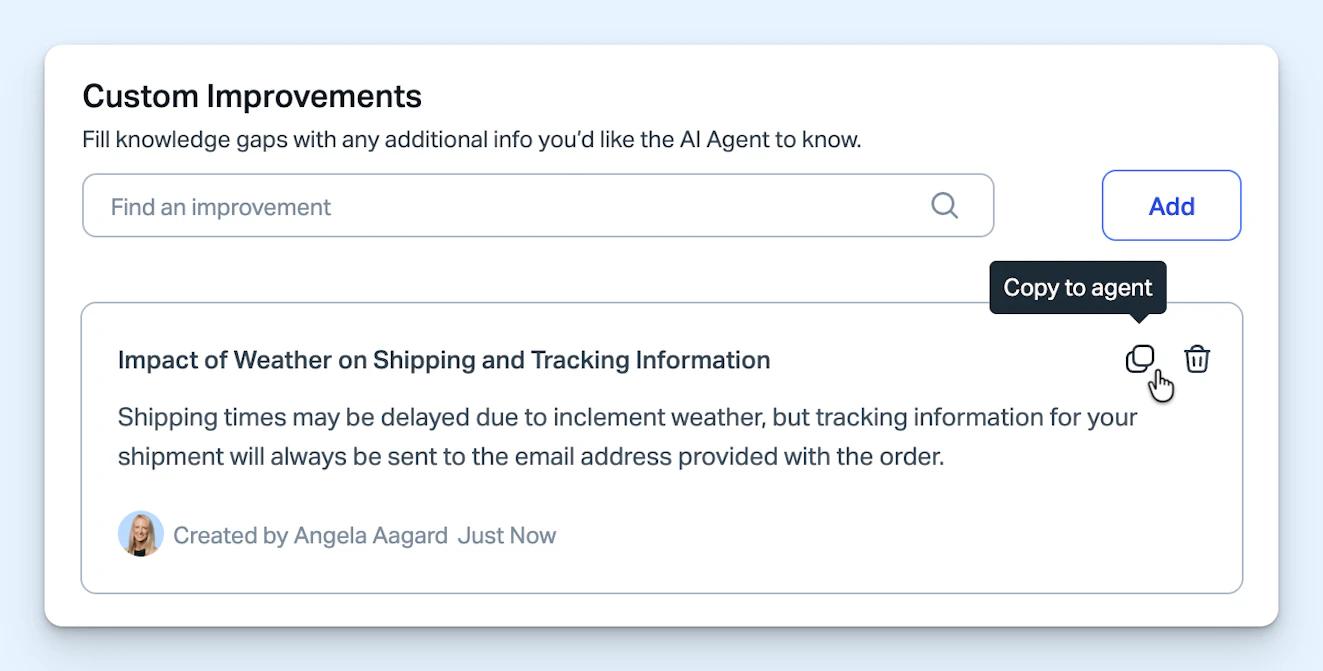
You can provide your agents with additional information and context with improvements, which can be used in two ways.
First, when you're creating your agent initially, you can add improvements to provide your agent with information that isn't available elsewhere. For example, if you have documentation in a password-protected internal knowledge base or Google Drive folder, you can copy and paste that information in as an improvement to have your AI agent add it to its training data.
Second, improvements can be used to train your agents on how to respond more accurately to questions. Your team can review the transcript of every conversation your AI agents have with customers.


If you find conversations where it couldn't help the customer, where it didn't respond accurately, or where it didn't respond exactly how you would have preferred, you can add an improvement to refine how it replies to similar queries in the future. Additionally, the transcript will list the specific sources the agent checked, which can be helpful for identifying gaps or outdated information in your knowledge base/other sources.

Set guardrails for what AI agents can respond to


If there are specific requests that you know you never want your AI agent to handle — health questions, financial advice, refund requests, etc. — you can set up guardrails that tell it to always send those requests to your support team. You can tell the agent exactly what to reply with when it encounters a question that's blocked by a guardrail and specify the options it should offer for contacting your team.
Beyond guardrails, you can also provide guidance to your agents for what they should do in unclear situations (e.g., when the customer writes "Hi" without also writing a question or the system encounters an error that prevents it from getting the information it needs to provide an answer).
Test your agents before launching them to customers


To ensure your agents are working the way you want them to, you can test them in a sandbox environment before launching them to customers.
Conducting thorough testing with the types of questions your team commonly receives — and writing improvements for any answers that aren't up to your standards — is a great way to ensure that when you launch your agent, it will deliver a great support experience for your customers.
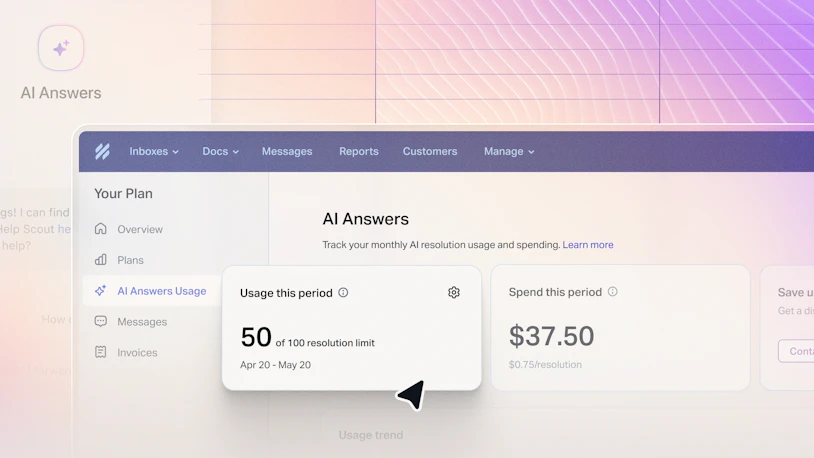
Help Scout gives all customers a free three-month trial of AI agents, so you'll have plenty of time to evaluate and improve them before you have to start paying to use the feature.
Recommended Reading
Evaluate your agent's performance

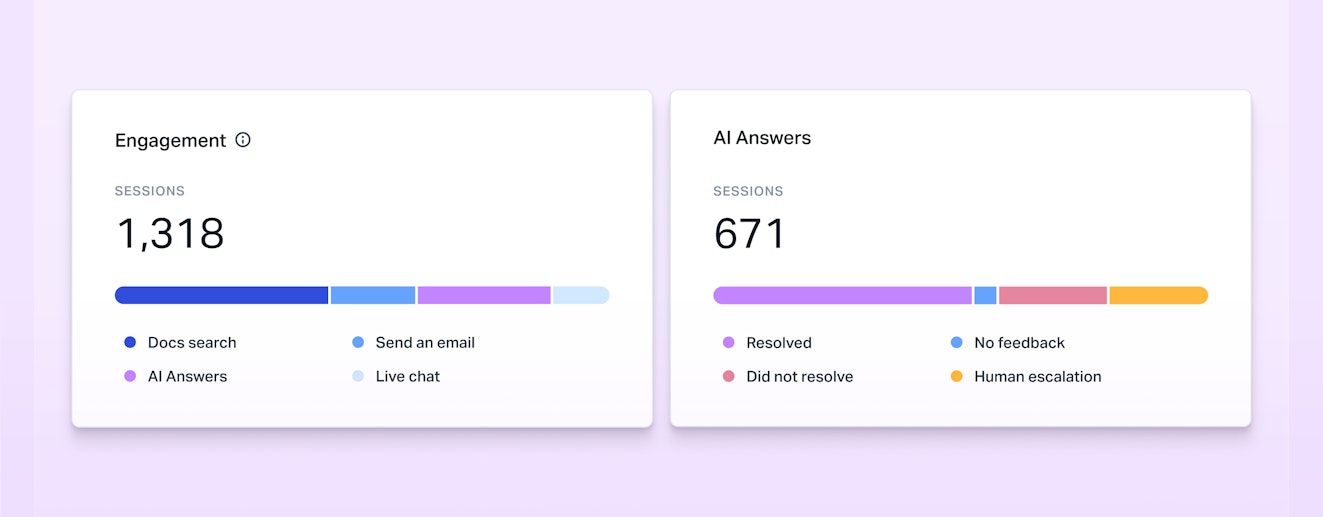
Once your agents are live, you can turn on satisfaction surveys to get feedback from your customers on the interactions they had with your agents. You'll also be able to view reports showing the number of questions your AI agents were able to resolve on their own, the number where a customer indicated that they needed more help but didn't reach out to your team, and the number that were escalated to a human.
Recommended Reading

Let customers know they're interacting with AI
We believe that it's important for people to understand when they're talking to AI and not a human, so wherever AI-powered features are used, it's clearly indicated in Help Scout's UI with text, an icon, or both.
AI copilots
While AI agents work directly with your customers, AI copilots work alongside your team. These features don't respond to customers on their own; instead, they help your team write faster, get up to speed quicker, and deliver more consistent support.
AI Drafts

Staring at a blank text field can be a challenge, even when you know the answer. With AI Drafts, you can generate a draft reply to any conversation with just one click. Simply review the draft, edit it if necessary, and click send. And if you don't want to have to edit it yourself, you can also prompt the system to rewrite the draft to add or remove information, change the voice or tone, or start over with a new approach.
In addition to using information from your knowledge base and website like AI agents, AI Drafts also uses knowledge from previous replies your support team has written. It's like searching your conversations for similar questions your team has answered in the past without you personally having to do the searching.
AI Drafts is particularly useful for answering common questions, saving time on research, and onboarding new team members. It helps your team move faster while still giving you full control over the final message.
You can generate drafts individually for each conversation where you want to use them, or you can use workflows to automatically create draft replies to incoming conversations. Create a workflow that generates a draft automatically for every new conversation, or specify which types of requests (e.g., only conversations that mention damaged orders) you want to have drafts created for automatically.
And like AI agents, you can also customize certain aspects of how your AI drafts are written. Specify the greeting it will use (e.g., "Hi [First Name],"), the closing it will use (e.g., "Thanks, [Agent Name]"), and the knowledge sources it will use to draft its replies.
AI Summarize
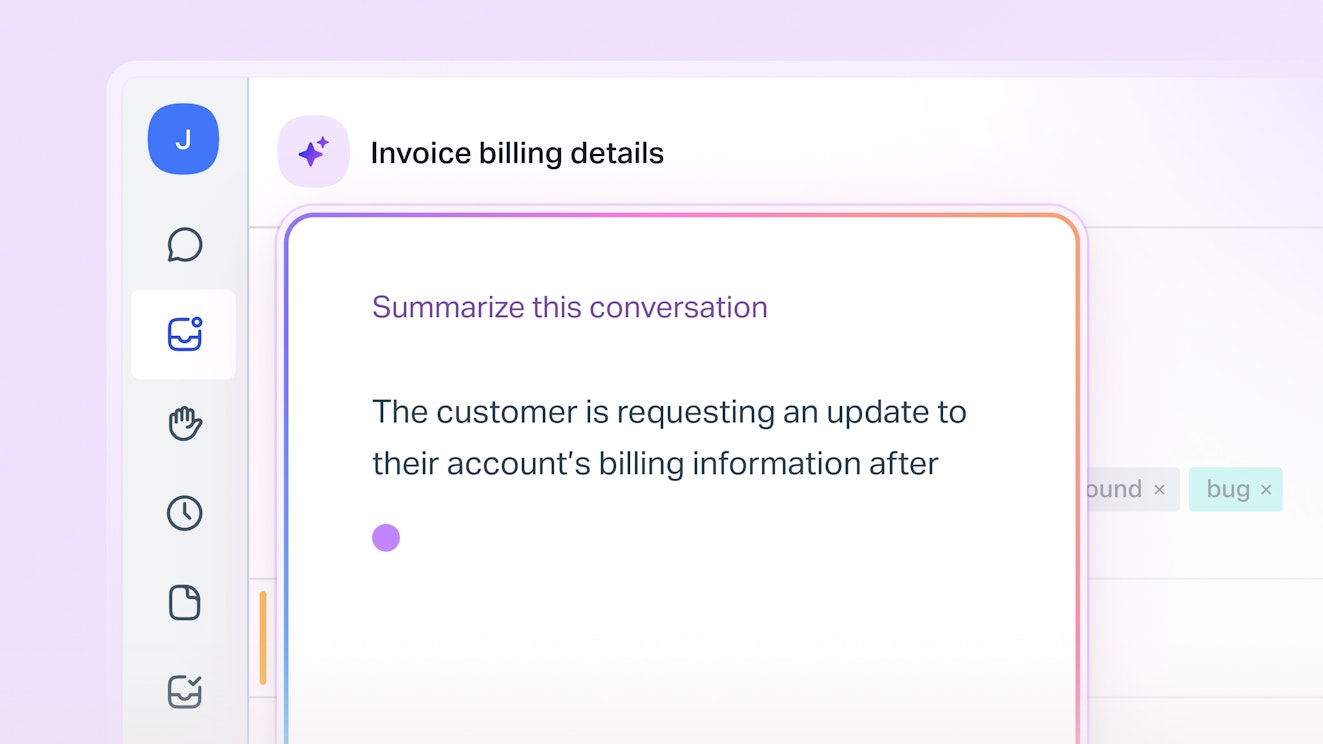
When you open a long back-and-forth conversation, it can take a while to read through the entire thread to get caught up. While it's possible for the last person who worked on the conversation to write a detailed internal note for the next person in line, it's time consuming and not always practical.
AI Summarize replaces the need to write detailed internal notes or read through long conversation histories. You simply click the summarize button, then AI reads the entire conversation history and provides a concise, bulleted summary of the key points. When new threads are added to the conversation, users can easily refresh the summary.
This lets your team get the context they need to get up to speed on complex issues in seconds.
AI Assist
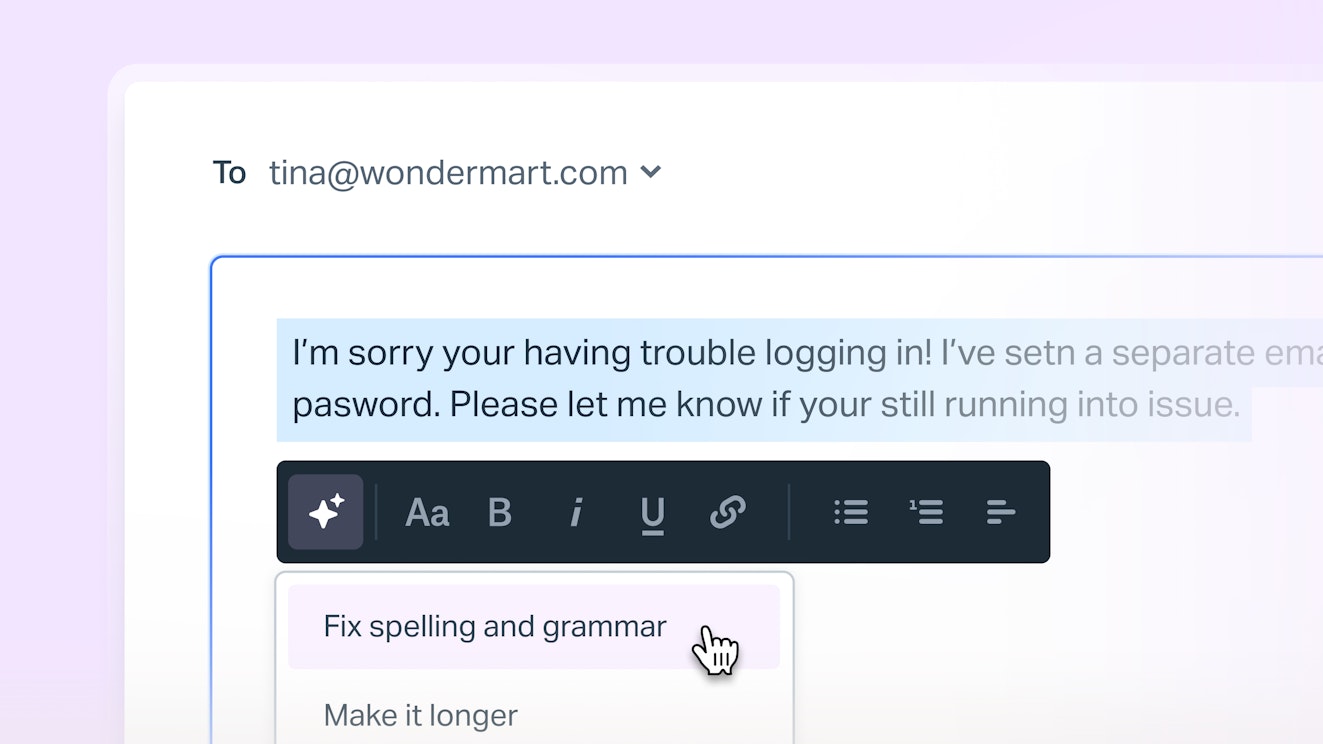
With AI Assist, your whole team can write better responses faster. It helps you ensure every response is polished and on point, maintain consistent quality across your team, and help new team members sound like seasoned pros.
Here's what you can do with AI Assist:
Adjust tone: Highlight something you’ve written, and, with a click of a button, AI Assist will change the tone to be more professional or more friendly.
Adjust length: Make a wordy draft more succinct by selecting “make shorter,” or turn a few bullet points or sentences into a complete draft by selecting "make longer."
Check your work: Ask AI Assist to review a draft you've written to fix any spelling and grammatical errors.
Translate your text: If you've written your reply in English but need to send it to a customer in a different language, you can use AI Assist to translate it into that language instantly.
AI Assist features can be used when replying to customer requests via email, chat, or social — as well as when creating proactive messages or knowledge base articles in Help Scout's Docs.
Topics


Tags are one of Help Scout's most-used features, and they're a powerful way to organize conversations, route work, garner insights, and power workflows. However, manually tagging every incoming conversation is time-consuming, and tags can be inconsistently applied or unintentionally duplicated.
Topics solves this problem by using AI to automatically categorize your conversations. It reads every incoming conversation and assigns it a theme — things like billing issue, integration problem, or refund request. It's not meant to replace tags; rather, it's an additional set of information your team can use to understand the most common reasons why customers contact your team.
When you first enable Topics, the system reviews your historical conversations and generates 8-15 topics for you to review. Once you've approved the topics, they're retroactively applied to conversations from the last 30 days. New conversations automatically get topics applied to them, and a process runs daily to identify patterns and alert you to any new topics that might be worth adding.
In addition to the topics that are generated automatically, you can add your own topics and describe the types of conversations that the topic should be applied to. And you can edit an existing topic at any time to change its name, provide new instructions for which conversations it's applied to, or enable/disable it.
Once you have topics, you can use them in multiple ways. Filter your inbox by topic with custom views, search for conversations with a specific topic applied, use topics as conditions in your workflows, and view reports showing trends in conversation volume over time for each of your topics.
MCP server
The features above bring AI into Help Scout. Help Scout's Model Context Protocol (MCP) server does the opposite: it brings your Help Scout customer knowledge into the AI tools your team already uses.
Your help desk is one of the richest sources of customer knowledge in your entire business, but manually reviewing dozens, hundreds, or thousands of historical conversations is impractical. Help Scout's MCP server lets AI assistants like Claude, ChatGPT, and Cursor securely retrieve that customer knowledge. You can use it to get information like:
The most common questions customers ask that aren't yet covered in your knowledge base.
Which topics or products are driving the biggest week-over-week increase in conversation volume.
Every mention of a competitor across your conversations over the past quarter.
The objections or hesitations prospects raise most often before purchasing.
A summary of what a specific customer has contacted you about before your next call with them.
The feature requests that are most frequently tied to your highest-value accounts.
Access is currently read-only. Each team member connects using their own Help Scout credentials, so AI assistants can only ever access the conversations and customer data that person is authorized to view.
Data privacy and security
Help Scout's AI features are powered by the OpenAI API service. None of the data we send to OpenAI gets used for training their model, and we will not opt into using data from Help Scout to train OpenAI's models in the future. You can find more technical and security details in our AI Transparency Hub.
Additionally, our AI features are GDPR compliant and aligned with our security and privacy policy.
Ready to see Help Scout's AI features in action? Start a free trial.
Like what you see? Share with a friend.
Jessica Greene
Jessica Greene is a Help Scout alum, where we make excellent customer service achievable for companies of all sizes. Connect with her on LinkedIn or through her website.


